
 Keep
Tin
Keep
Tin
Saturday, 19 May 2012
Your phone is full, and you cannot remember what is on it. Thousands of photographs you have not looked at since the day you took them — and somewhere in there, the ones you would be heartbroken to lose.
Memory Tin gives you them back one day at a time, starting with the oldest picture you own. Keep what matters. Tin the rest. Get the space back as you go.
Photos never leave your iPhone
One batch, one confirmation
Pull anything back out of the tin
One free chapter every day
Every chapter is a single day from your past. Clear it and you get a small summary: what you kept, what went in the tin, and how much room you just made.
Memory Tin opens on the very first photo you own and moves forward, so you meet your library as a story instead of a wall of thumbnails.
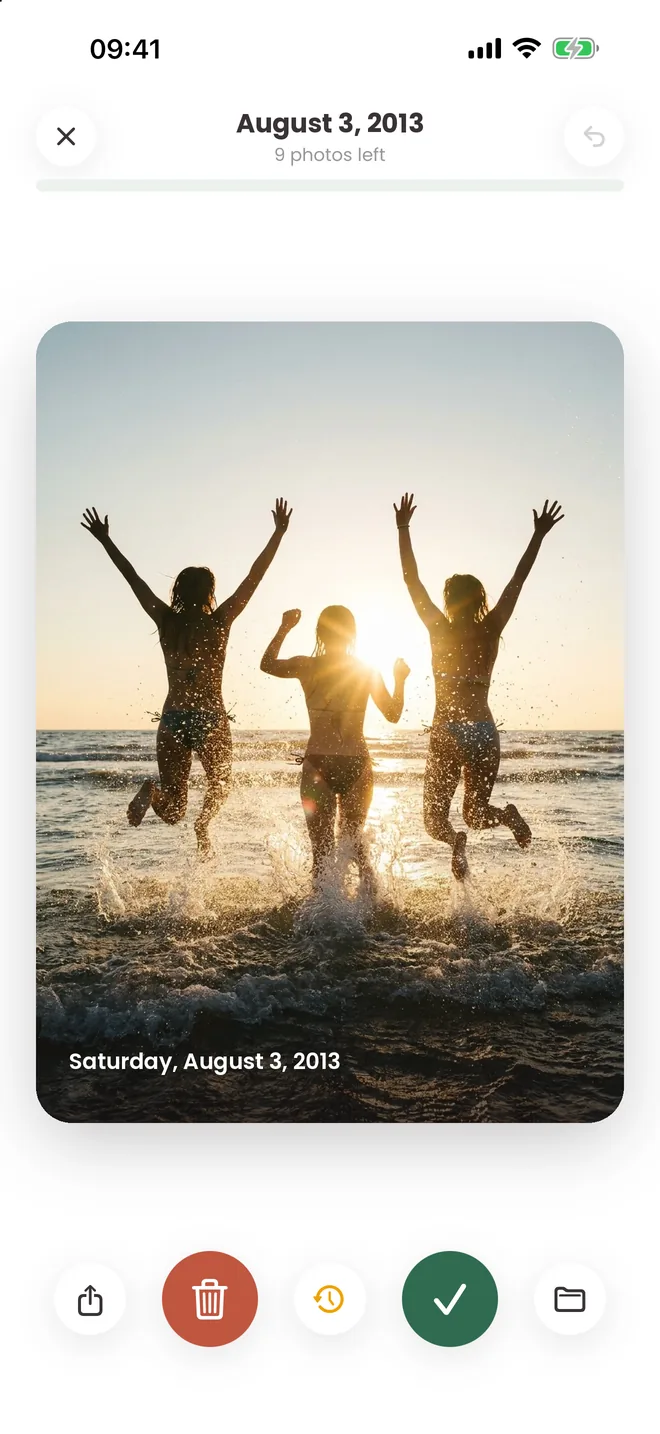
Swipe right to keep it. Swipe left to drop it in the tin. Swipe down when you honestly cannot decide yet — that pile waits for you, it never nags.
Nothing disappears behind your back. The tin holds everything until you deliberately empty it: one batch, one confirmation, and you can pull anything back out first.

A cleaner sorted by “largest file” will never show you this one. A chapter from that summer opens with it. That is the whole difference: you are not auditing storage, you are walking back through the best of your own life and deciding what to carry forward.
6 July 2019
Six photos, about twenty seconds. In the app each day is its own chapter, and there are thousands of them waiting.
Keep
Tin
Saturday, 19 May 2012
 Keep
Tin
Keep
Tin
Saturday, 3 August 2013
 Keep
Tin
Keep
Tin
Sunday, 21 June 2015
 Keep
Tin
Keep
Tin
Thursday, 2 June 2016
 Keep
Tin
Keep
Tin
Friday, 8 September 2017
 Keep
Tin
Keep
Tin
Saturday, 6 July 2019
This one needs JavaScript. Everything else on the page does not.
Drag the photo left or right, or use the buttons. Arrow keys work too.
Right keeps, left tins, down means not today. Notice what happens: you stop thinking about storage almost immediately and start reading the dates — which is exactly what happens with your own.
Nothing decided yet. 0 kept · 0 in the tin · 0 for later · up to 0.0 MB back
Now imagine those were yours. Days like these are sitting on your phone right now, behind nine thousand photos you have not scrolled past in years.
Not a storage audit with a progress bar. A short walk back through one day of your own life, with a delete button you are allowed to trust.
A chapter does — one day of your past, in order, starting from the very first picture you own. Five minutes and you are done, properly done, for today. Then tomorrow there is another one, and somewhere around the third or fourth you notice you have stopped doing it for the storage.
A swipe left only puts a photo in the tin. It sits there — visible, reversible — until you decide to empty it, and then it is one confirmation for the whole batch instead of one per photo. There is always a moment to change your mind.
The On This Day deck is the one to be careful with. You open it meaning to give it thirty seconds — which is the opposite of what a cleaning app is supposed to do to you.
Four hundred screenshots of something you needed for one afternoon in 2019. Receipts, boarding passes, the same shot twelve times. No feelings involved, and years of it gone in a couple of minutes.
Finish a year and Memory Tin makes something out of it: what you kept, what you let go, how far back you have walked. Made on your phone, and yours to send to whoever else was there.
Streaks, badges, a journey meter, filing keepers straight into the albums you already use, and thirteen languages are all in there too — none of them the reason you will keep opening it.
Be honest with the second slider. The part of your camera roll that was never a memory — the receipts, the duplicates, the screenshots — is usually bigger than people guess, and it is the part you can lose without a second thought.
Everything else stays exactly where it is. This is the floor of what you would get back, before you have made a single difficult decision.
Three moments from an ordinary session.
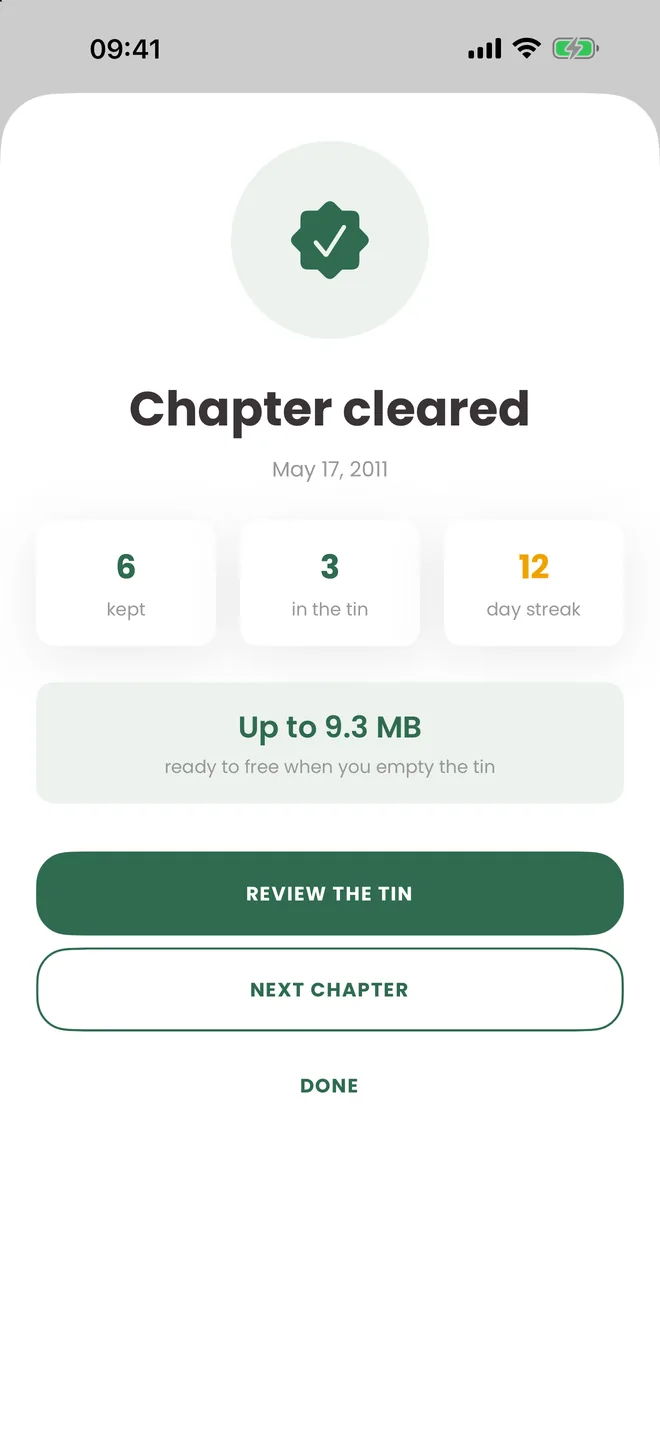
Done, and nine megabytes lighter
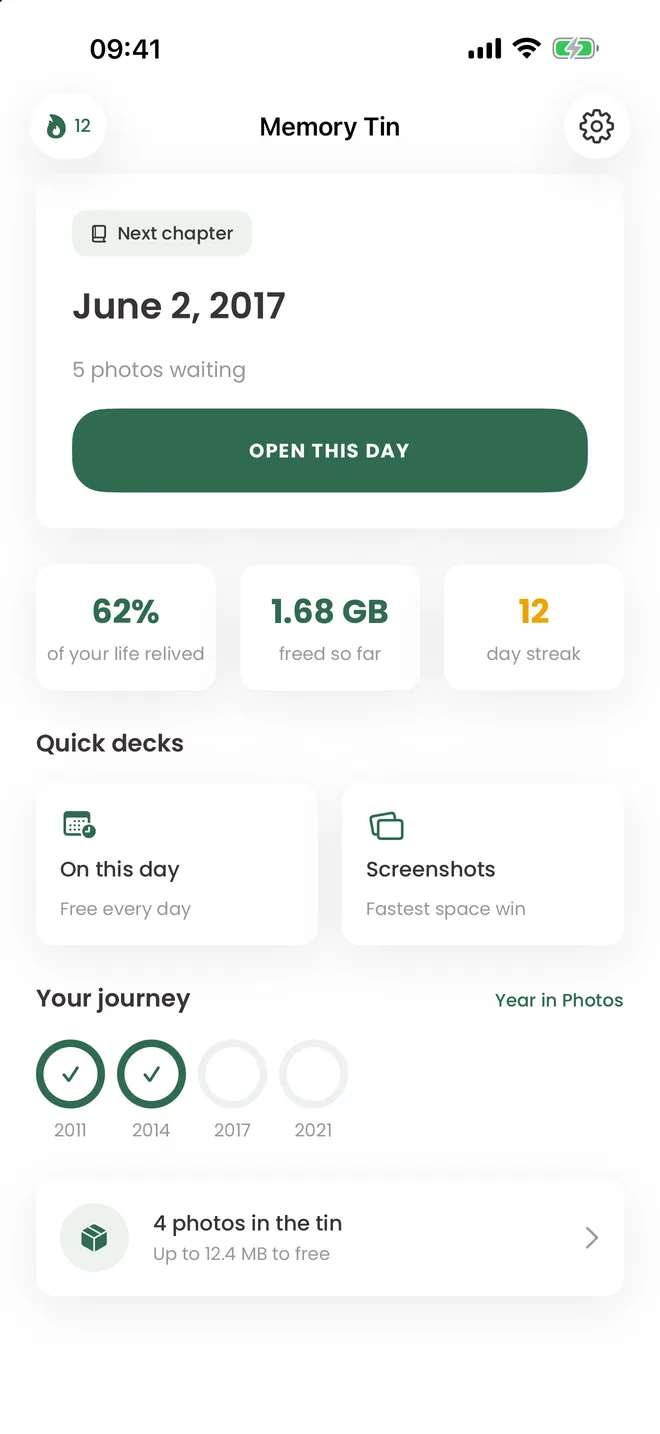
Sixty-two per cent of the way back through your own life
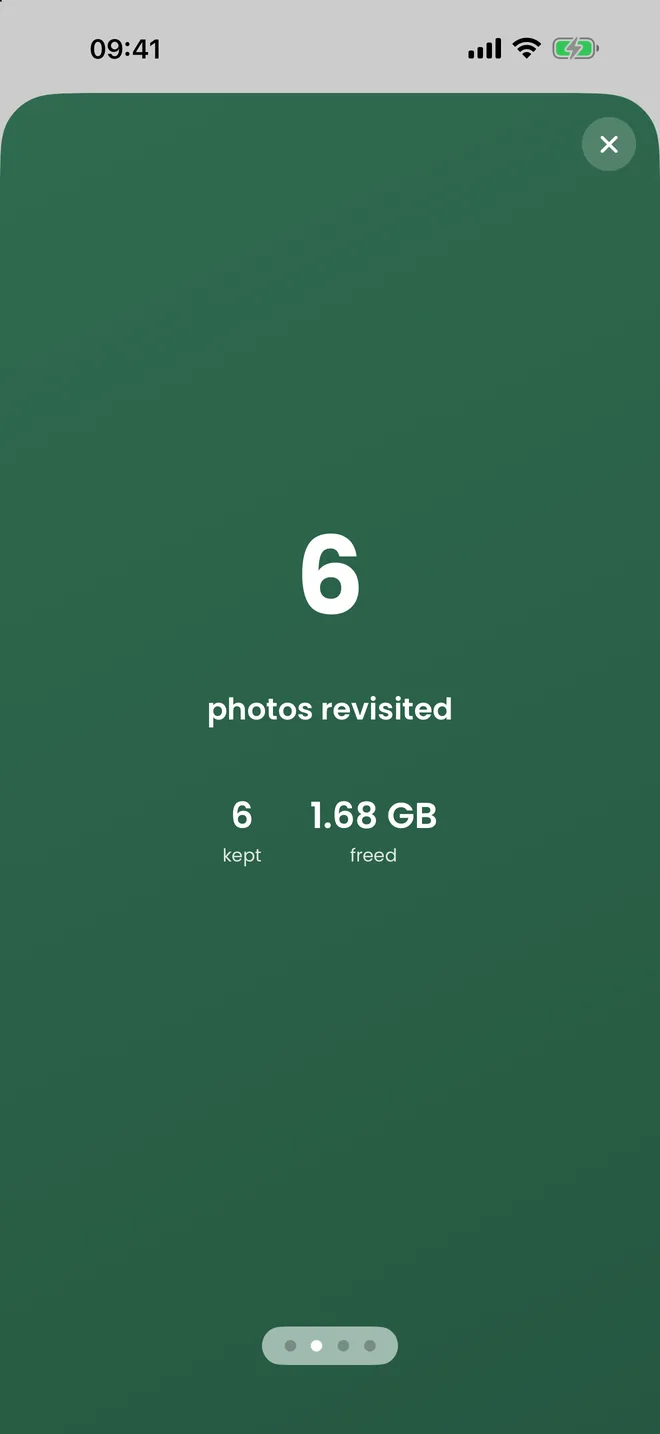
The year, in the photos you kept
There is no account, no sign-up, no upload and no cloud. Every decision, every deck and every megabyte counted happens on your iPhone.
Not to us, not to an AI service, not to analytics. The app has no code path that uploads an image.
Open the app and start. Nothing to sign up for, nothing to remember, nothing to delete later.
We count events like “chapter finished”. The app refuses to send anything that identifies an image.
Emptying the tin is free forever. “Pay to actually delete” is the pattern this app exists to replace.
One honest note on storage. iOS keeps deleted photos in Recently Deleted for 30 days, which is why the app always says “up to X MB freed”. Empty that album in Photos and the space is really yours again.
Memory Tin is new, so there is nothing to boast about yet. Here is what is true instead.
The whole ritual — a chapter a day, On This Day, streaks, badges and emptying the tin — is free forever. Premium removes the daily cap and adds your Year in Photos.
Free
No account, no trial timer, no card. Just open it.
Premium yearly
Under $2 a month. There is a monthly ($4.99) and a weekly ($1.99) if you would rather clear the backlog and stop — but if you are going to use it for more than three months, the year is the sensible one.
Renews yearly. Cancel any time in the App Store.
Lifetime
One payment. No renewal, no subscription to remember.
US prices. Apple sets the equivalent in your own currency and shows it before you buy.
Plenty of cleaner apps let you select everything and then ask for payment before the delete button works. That is the pattern this app was built against. Emptying the tin is free in every version, on every plan, forever.
Version 1.0 is deliberately small: one loop, done properly. These are the things we want to build next — not promises with dates on them.
If something here matters to you, or something you need is missing entirely, tell us. We read every message.
The twelve near-identical versions of one photo, collapsed into a single decision.
Crop and straighten the keepers in place, instead of bouncing out to Photos.
Video is where the real gigabytes hide, and it needs a different rhythm to photos.
Only once the iPhone version is genuinely good. A rushed port would not be either.
Because iOS does not free the space immediately. Deleted photos sit in Recently Deleted for 30 days, and iCloud-optimised photos report their full original size even when only a small version is on the device. No app can empty Recently Deleted for you — so we say “up to”, and remind you to empty it in Photos. See our guide to freeing up iPhone storage for how the different cleanup methods compare.
Yes, twice over. A swipe only moves a photo into the tin — nothing is deleted until you choose to empty it, and you can take anything back out before that. Even after emptying, iOS keeps the photos in Recently Deleted for 30 days.
Yes — and that is worth understanding before you start. If you use iCloud Photos, your library is one shared library across your devices, so a deletion syncs everywhere, exactly as it would if you deleted the photo in the Photos app itself. It lands in Recently Deleted for 30 days first, on every device. If you want a copy that is not affected, take a backup outside iCloud before your first session.
Version 1.0 walks through photos, including Live Photos, which behave as one item. Video is not part of the chapters yet — it needs a different rhythm, and it is on the list. You can leave a chapter half-finished at any point; your decisions are kept and the next session picks up where you stopped.
No, and you never will. Emptying the tin is free in every version and on every plan. Premium changes how many chapters you can do in a day and adds Year in Photos — it never stands between you and your own delete button.
No. There is no account and no server that receives photos. Everything — the chapters, the decks, the megabyte counting — happens on your iPhone. Analytics events are counted without any photo data attached, and the app actively refuses to send it.
Not yet. Memory Tin is an iPhone app built natively for iOS 17.0 and above. Android is on the list, but only once the iPhone version deserves it.
Nothing at all, unless you ask. Keeping simply marks a photo as decided so you are not shown it again. If you want, you can file keepers into your existing albums straight from the deck — iOS adds them to the album rather than moving them, because there is no true “move” in the photo library.
A small independent studio in Estonia. Support goes to a real person: support@memorytin.app.
Free to download, free to use every day, and free to empty the tin. iPhone, iOS 17.0 and above.

On a laptop?
Point your iPhone camera at the code.